> For the complete documentation index, see [llms.txt](https://tokenfi.gitbook.io/whitepaper/llms.txt). Markdown versions of documentation pages are available by appending `.md` to page URLs; this page is available as [Markdown](https://tokenfi.gitbook.io/whitepaper/token-launcher-and-quicklaunch-bot-guide/uploading-to-ipfs/uploading-erc721-nft-images-to-ipfs.md).
# Uploading ERC721 NFT Images to IPFS
How to upload your NFT Collection images to IPFS
If you choose to deploy your NFT collection via an IPFS URL, you can follow this guide to ensure you are doing it right!\
\
This guide goes into detail, specifically on how to upload your ERC721 NFT Collection Images to IPFS.\
\
**Step 1:** Create an account on \
**Step 2:** Download the NFTUP Desktop Application: \
**Step 3:** Prepare your NFT images for upload.
NFT Images Directory
Before uploading your NFT Collection Images, **it is important that the names follow a proper format!**\
\
In this case the NFT Images should start from 0.png up to as many as you would like in ascending order. \
\
For example: 0.png, 1.png, 2.png, 3.png, 4.png and so on.
It is also important that you use a .png format before uploading these images. If your images are currently .jpg, you can use the tool below to convert it to a proper.png format.
{% embed url="" %}
***If you don't use the .png format there is a risk your images will not appear properly!***
**Step 4:** Uploading your images
Drag and drop all your images at once for upload.
You might be asked to enter an API key, if you are you can create it with the link below.
API Key Creation Page: \
\
**Step 5:** Save the IPFS URL
Upload Success Screen
Once your images are uploaded you will see the success screen, copy the IPFS URL and save it somewhere.
**Valid IPFS URL Example:** *ipfs\://bafybeiamrt5wez3tfxlqnn3wtqiqwxa5uktubiuidm3huohgihsgekyrdq*
A valid IPFS URL starts with `ipfs://`
**DO NOT CLOSE NFTUP JUST YET AS YOU WILL NEED IT LATER ON.**
**Step 6:** Generating your NFT Metadata files.\
**IMPORTANT NOTE: For each unique NFT, you will need to generate a UNIQUE file**\
\
Go to the following URL:
Then paste in the following code onto the left panel:
```json
{
"name": "COLLECTION NAME",
"description": "COLLECTION DESCRIPTION",
"image": "ipfs://bafybeihvaunlfbdyh5i4w2vsq4hw4mumjhf77mcss3bs5birac2tvwptdq/0.png",
"external_url": "YOUR WEBSITE URL",
"attributes": [
{
"trait_type": "Base",
"value": "Starfish"
},
{
"trait_type": "Eyes",
"value": "Big"
},
{
"trait_type": "Mouth",
"value": "Surprised"
},
{
"trait_type": "Level",
"value": 5
},
{
"trait_type": "Stamina",
"value": 1.4
},
{
"trait_type": "Personality",
"value": "Sad"
}
]
}
```
Modify your `name`, `description`, `external_url`, and `attributes`accordingly.\
\
For the `image` property you can paste in your appended IPFS URL that you had made from Step 5 WITH the proper image number such as \`{IPFS\_URL}/0.png\`
You can also refer to the Opensea Documentation to see what properperties can go with your NFT metadata.
{% embed url="" %}
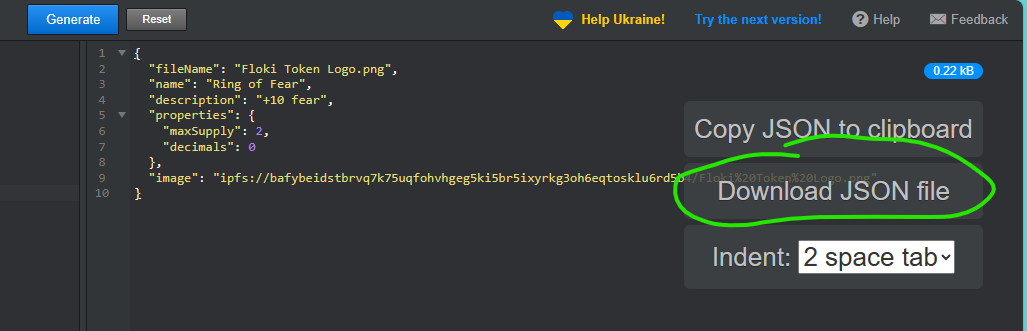
**Step 7:** Click on the blue Generate button on the middle of the screen.\
**Step 8:** Download the .json file and save it as `0`, `1`, `2`whatever the current NFT ID is and save it in the same directory.
**Step 9:** Repeat Step 5 - 8 for each INDIVIDUAL NFT.
**Step 10:** Return to NFT UP and upload ALL the generated JSON files that you completed in Step 9**.**
**IMPORTANT:** Drag and drop all your JSON Files at once for upload.
Once uploaded, you should see a Gateway URL link, you can open that link to make sure your data is uploaded properly.\
\
The uploaded data should follow a similar structure such as this:
**Step 11:** Save the IPFS URL
Upload Success Screen
Once your images are uploaded you will see the success screen, copy the IPFS URL and save it somewhere.
**Valid IPFS URL Example:** *ipfs\://bafybeiamrt5wez3tfxlqnn3wtqiqwxa5uktubiuidm3huohgihsgekyrdq*
A valid IPFS URL starts with `ipfs://`
Submit the IPFS URL to the QuickLaunch Bot `NFT IPFS URL` field.